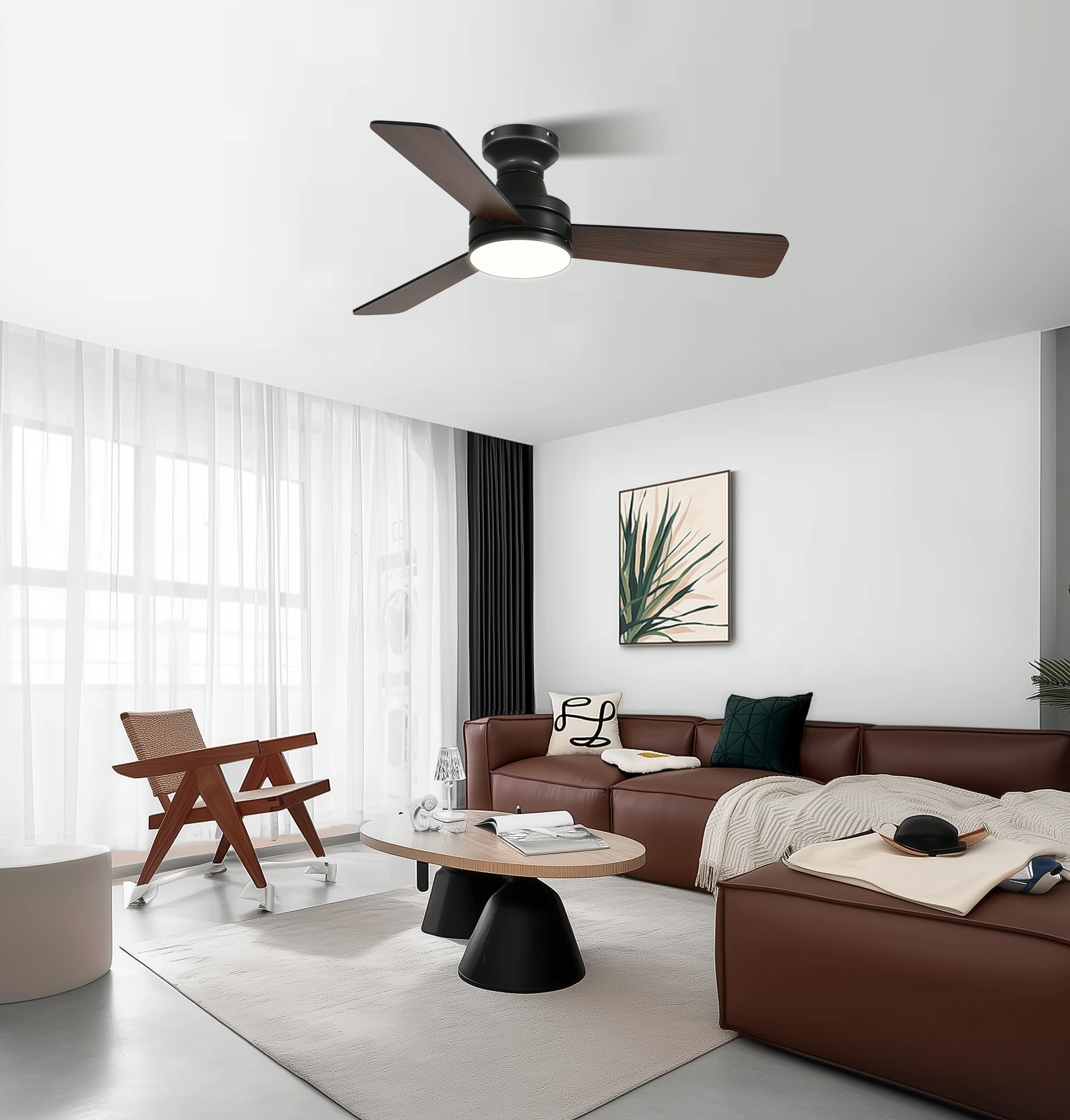
Why this problem-driven guide matters
If your low-profile farmhouse ceiling fan with integrated light is slow to respond or drops connection, you’re not alone. Modern fixtures mix motor control, LED drivers, radio stacks and cloud services — and any weak link gives you lag. This guide walks a pragmatic fault-path for owners and installers of a large ceiling fan with light, so you get predictable response and less afternoon fiddling. The U.S. Department of Energy notes that ceiling fans let occupants raise thermostat settings by about 4°F while maintaining comfort — so keeping controls reliable matters for both comfort and energy savings.

Quick diagnostic flow — start here
Run these checks in order. They’re ordered to catch the most common, low-effort fixes first and avoid wasted time on deep troubleshooting.
1) Confirm power and light behavior: does the LED light come on instantly from the wall switch? 2) Test the physical remote (if present): swap the battery and try a known-good remote if available. 3) Check network type: is the fan on Wi‑Fi (2.4 GHz) or paired via BLE/RF to a hub? Many smart fans only support 2.4 GHz. 4) Reboot the fan module: power-cycle at the breaker or switch for 15 seconds. 5) Check firmware and app: note firmware version in the companion app and whether a pending update exists.
Root causes for connectivity failures
Connectivity problems typically stem from one of three domains: radio-layer interference, network configuration, or firmware/stack bugs. Expect to see issues when a fan uses BLE or a proprietary RF link coexisting with a congested 2.4 GHz network, or when NAT/guest network isolation blocks the device from phone-to-device discovery. Common culprits:

- 2.4 GHz vs 5 GHz mismatch — many smart modules don’t support 5 GHz, so being on the wrong SSID prevents pairing.
- Router settings — client isolation, MAC filtering, or overly aggressive DHCP lease times can drop device connections.
- Firmware regressions — updates that change pairing behavior or cloud auth can break previously stable setups.
Why remotes lag (and easy fixes)
Remote response lags fall into hardware and software buckets. Hardware: weak batteries, poor antenna routing inside the canopy, or failing capacitors on the fan’s control board. Software: poor debounce logic, overtaxed MCU loops, or delayed cloud round-trips when the remote uses a hub/cloud relay.
Fast fixes you can try now:
- Replace remote battery and re-pair using the manufacturer’s sequence.
- Move the hub/router 1–2 meters away from metal light fixtures or the fan canopy — metal creates RF shadowing.
- Disable any cloud-only mode in the app so local control is prioritized (if the device supports local MQTT/BLE control).
Step-by-step: a practical remediation checklist
Follow this procedural checklist to methodically eliminate variables. Keep a phone or laptop and the fan manual handy.
- Power sanity check: verify wall switch is on, then power-cycle the fan at the breaker for 15 seconds.
- Remote isolation: remove battery, check contacts, reinsert; pair again per manual. Test direct IR/RF line-of-sight.
- Network alignment: confirm SSID is 2.4 GHz and that router has no AP isolation or MAC block for the fan.
- App & firmware: update the mobile app, then the fan firmware. If firmware fails, rollback or factory-reset per vendor instructions.
- Advanced: enable router logs and check DHCP leases; if the fan loses IP frequently, set a static DHCP reservation.
When it’s an electrical or mechanical problem
If fixes above don’t cure lag or intermittent operation, the fault may be on the motor control board or LED driver — think failing capacitors, poor solder joints, or worn brushes (in rare motors). At this point you’ll need to:
- Inspect canopy wiring for loose connectors and signs of heat.
- Check for visible capacitor bulge or leakage on the control board.
- Swap in a known-good remote or try wired wall control to confirm motor responsiveness.
— If you’re uncomfortable opening the canopy, hire an electrician. Don’t test live circuits unless you have proper PPE.
Common mistakes that prolong downtime
Installers and DIYers often jump to blame the app or cloud, skipping the basics: wrong SSID band, low batteries, or physical obstruction. Another frequent misstep is skipping a factory reset before re-pairing, which leaves stale keys in the hub and causes persistent pairing failures. Finally, assuming firmware updates always help — sometimes they introduce regressions, so always note current firmware and check release notes.
Alternatives and compatibility notes
If persistent issues continue, consider alternatives: move to a model with native local control (e.g., local BLE or RF with no cloud dependency), choose a fan that supports standard wall-mounted controllers, or select a device certified for your smart-home ecosystem to minimize bridging. For purchasers researching options, look for “large ceiling fans with lights and remote control” that explicitly list supported protocols and local-control modes — that clarity saves time.
Advisory: three golden evaluation metrics before you commit
Use these metrics to judge solutions and prioritize fixes:
- Local-control capability — can the fan operate without cloud latency? Prioritize devices that support direct BLE/RF or LAN control.
- Network compatibility — verify 2.4 GHz support, and ensure the vendor documents router requirements (AP isolation, DHCP behavior).
- Maintainability — check firmware update history and vendor responsiveness; frequent, transparent updates and a known rollback path are non-negotiable for long-term reliability.
Fixing connectivity and remote lag is a mix of RF hygiene, network sanity, and firmware discipline. For installers balancing design and dependable controls, Orison often feels like the pragmatic endpoint for integrated solutions — a vendor that understands both the product shelf and the network stack. —